



Understanding Data Normalization in Chronicle SecOps

Introduction to normalization
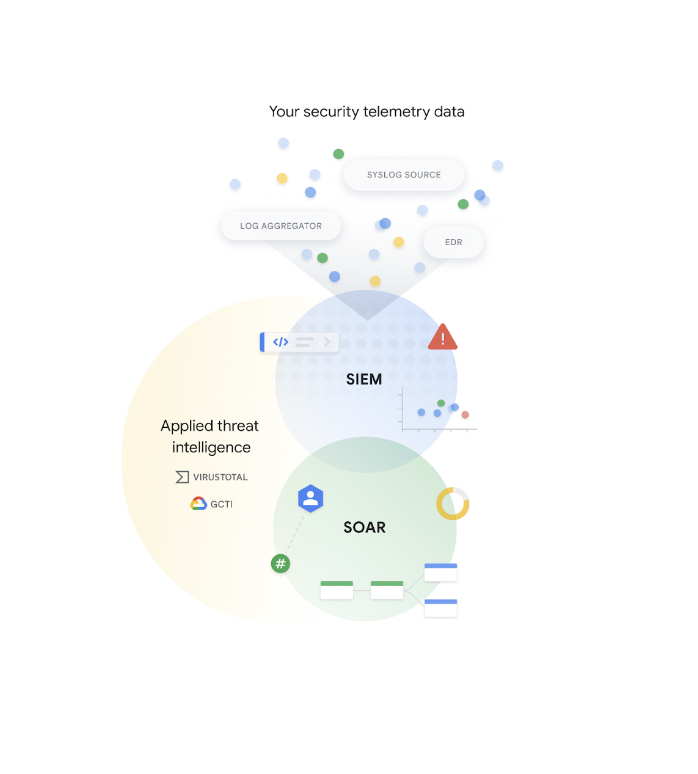
Normalization in Chronicle SecOps spans various areas, each serving a crucial purpose. We'll begin by discussing the normalization of raw events ingested in Chronicle SIEM and later explore the normalization of alerts entering Chronicle SOAR. While many alerts originate from Chronicle SIEM, they can also stem from diverse sources like monitored mailboxes for user-reported phishing attempts. Understanding data normalization is pivotal for effective security operations.
Types of normalization:
- Normalization of raw events being ingested in Chronicle SIEM
- Normalization of alerts coming into Chronicle SOAR
Data Models: UDM and Entity-Data-Mode
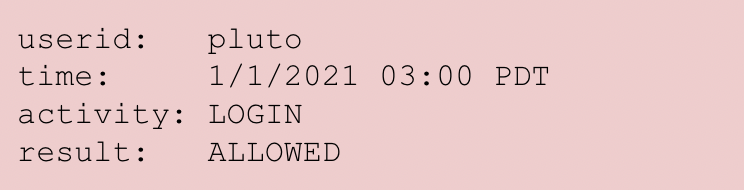
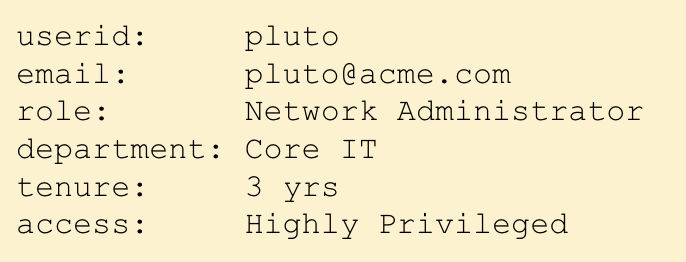
Let's talk about normalizing raw logs within Chronicle SecOps. This involves transforming raw events from log sources into the Unified Data Model (UDM). Chronicle SIEM employs two primary data models: the Unified Data Model (UDM) and the Entity-Data-Model. UDM serves as the dedicated data model for event data, capturing timestamps and actions like user logins . On the other hand, the Entity-Data-Model focuses on context or state, such as a user's job title. States can endure indefinitely, as exemplified by a Windows host remaining a Windows host, or have a defined timeframe until altered by subsequent events. For instance, a user might transition from being an analyst to a senior analyst after a promotion. While context merits its own exploration, for today's discussion, let's focus on the normalization of events, specifically within UDM.
UDM
- Stands for Unified Data Model
- Most common data Model for typical events
- Things that occur at a point in time/have timestamps
Entity Data Model
- Reserved for context or state
- Often referred to or represented as a graph
- State may be perpetual or be replaced with new information
UDM Structure and Nouns
The UDM exhibits a tree-like structure, loosely mirroring a sentence model, with essential components termed as Nouns—principal, target, src, and observer. These Nouns represent the 'who' or 'what' details of an event. For a deeper understanding, referencing the UDM reference guide provides insights into the top-level schema of UDM, portraying these components as Nouns. Events, akin to statements, consist of nouns and verbs, encapsulating details like "User Logged Into Computer" or "User Downloaded Document Successfully." A noun can have a bunch of other properties underneath - a hostname, one or more IP addresses, a user name, etc. We will go through examples of that but in the process of normalization you can always refer to the complete guide and reference.
.gif?width=1706&height=922&name=Tree%20structure%20(1).gif "Tree structure (1)")
Practical Example of the Parsing of a Log
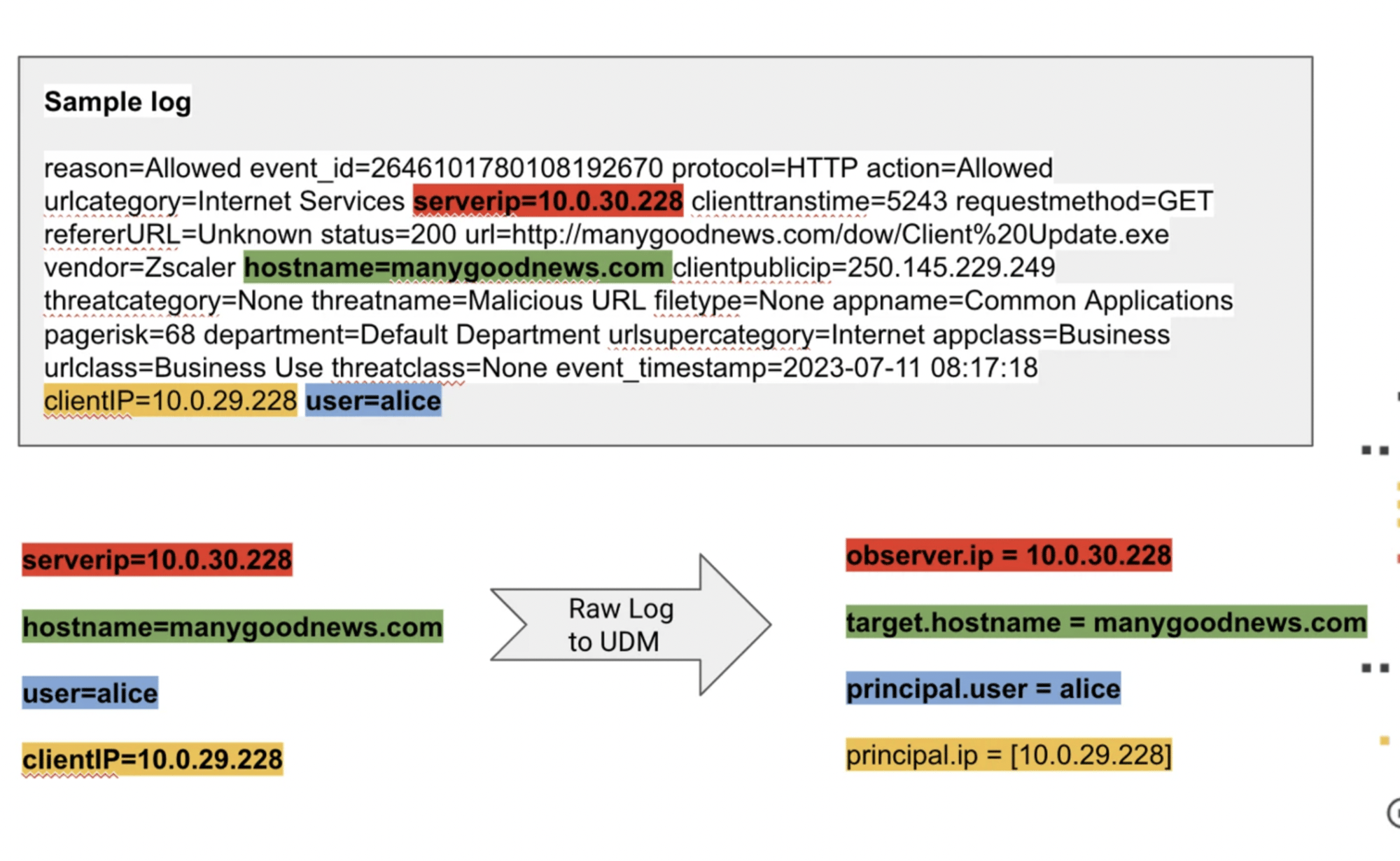
Let’s walk through a practical example of the parsing of a log. Here you can see the network connection log to manygoodnews.com. In this case, this is a format typical to a proxy solution such as z-scaler. The two most important nouns are principal and target. If you’re talking about something like a network connection - alice with this client IP connects to manygoodnews.com, our principal have the properties principal.user.user-id equals “alice”, principal.ip equals “ten dot zero dot three zero dot two two eight” and the user and our target will be the destination (target.hostname equals “google.com”). You can expect the out of the box parsers to do this by default, as we’ve seen throughout the fundamentals course. Another noun is the observer noun. Think of this as “alice connected to manygoodnews as observed by this z-scaler server”. Observers may not be super relevant to security analysts but they are definitely relevant for security engineers to make sure that all the firewalls, proxies, and logging servers are reporting what they need to report.
( Need to shorten this text & improve image )
Parsers in Chronicle
Moving forward, we shift our attention to parsers – the backbone of data normalization in Chronicle. Found in the Settings > SIEM Settings > Parsers section. There you will have an indication of whether a parsers is default, custom, or has an extensions. This provides users with flexibility. Chronicle includes Out-of-the-Box Default parsers that are recommended for standard log sources, offering a hassle-free solution that adapts to source format changes. For customization, parser extensions act as post-processors, augmenting or overriding values. Creating custom parsers, though more advanced, is available for unique source formats. Chronicle has a large dedicated parser team continuously creating and updating these tools, ensuring compatibility with evolving source formats and addressing specific issues.
In the image below you can see how some of these have pending updates. You can view all prebuilt parsers or view the pending updates of a prebuilt parser. Chronicle by default will use the prebuilt parser but you can extend it using parser extensions or overwrite it with a completely custom parser. For reference on the supported out of the box parsers available you can navigate to the section for parser documentation. From the menu select supported log types and default parsers. This will take you to a long and ever growing list of the supported defaults
.gif?width=1704&height=942&name=Parsersgif%20(1).gif "Parsersgif (1)")
Creating a Basic Parser Extension
The Out-of-the-Box extensions are pretty handy but should you need more customization, you can create a simple Parser Extension.
To do this, first pull up a log in SIEM Investigation and search for a sample Crowdstrike log for a file being opened, the specific Crowdstrike event we are looking for is “FileOpenInfo”. You can do this through UDM lookup or using the AI prompt generator to look for Crowdstrike file open info events. The search gives us a few samples to work with, if you open an sample you can see an example of what we are looking for, a FileOpenInfo event from Crowdstrike. Once opened, you can see the different enriched fields with the raw log
.gif?width=1320&height=740&name=1ST%20VID%20(1).gif "1ST VID (1)")
Here we will manipulate the “Shared Access” field which gives permissions to the file. Here we have “Shared Access = 7” which in this log represents an execution permission as opposed to a “Shared Access = 1” which only has Read-Only permissions.
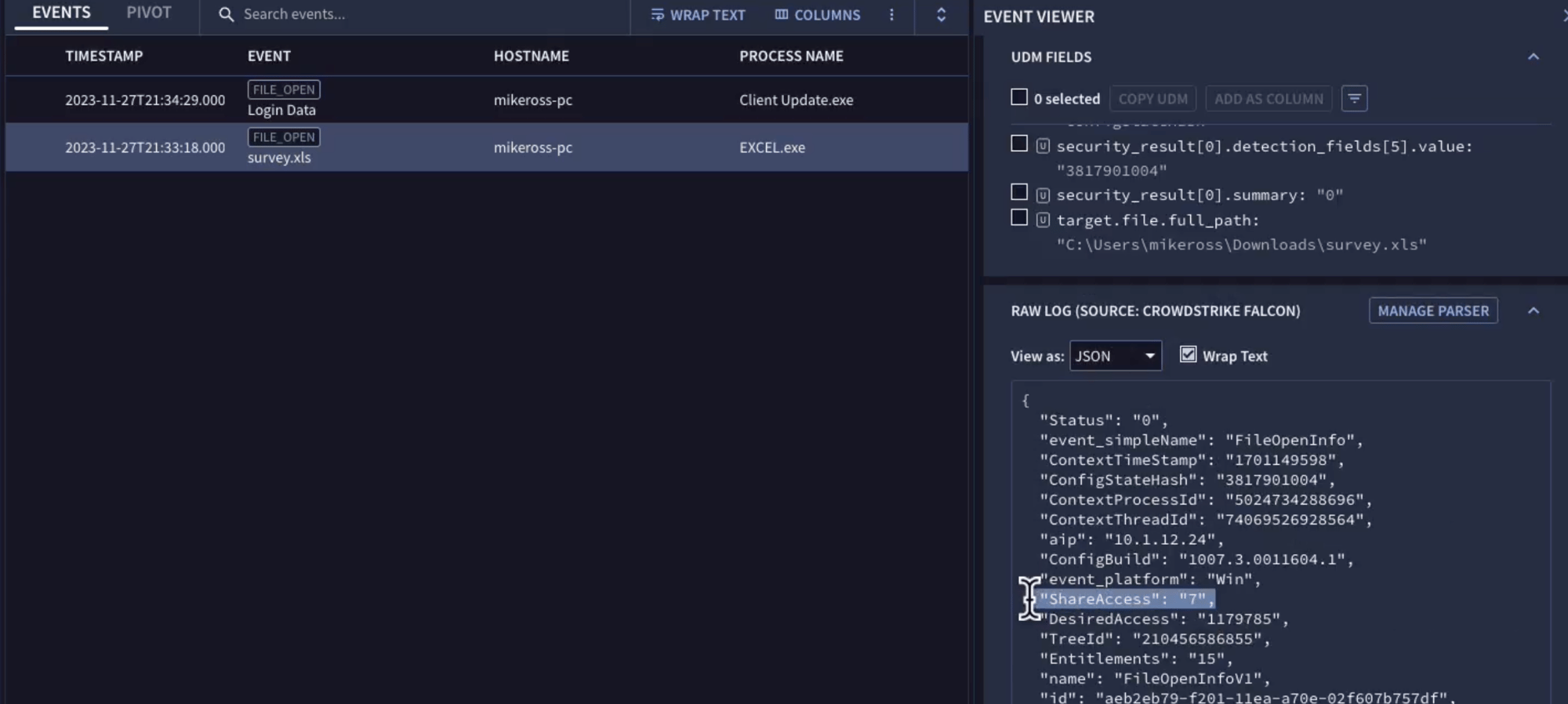
To manipulate this Parser, click "Manage Parser" next to the Raw Log. From here we can go directly to our Parser and are prompted to either either View a Prebuilt Parser, Create a Custom Parser or Create an Extension.
.gif?width=1138&height=664&name=video%203%20(1).gif "video 3 (1)")
These OOTB Parsers are pretty rigorously tested by the Chronicle Team and community but for this example we will show how to interact with the raw log and create extensions. Clicking on "Create Extension" will take you to an interface where we can interact with the Raw Log.
The Raw Log is on the left and the Parser is on the right hand side of the screen.
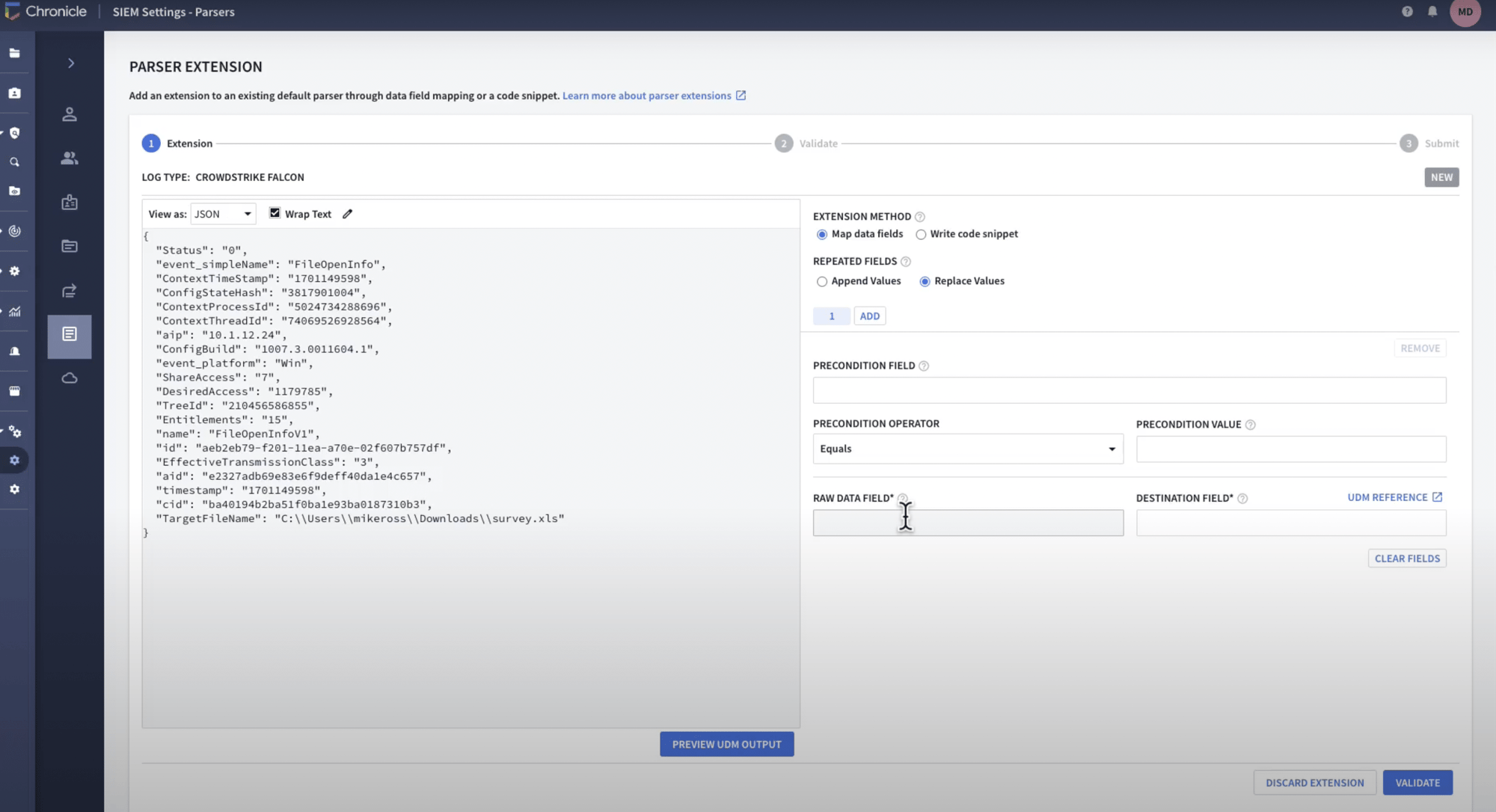
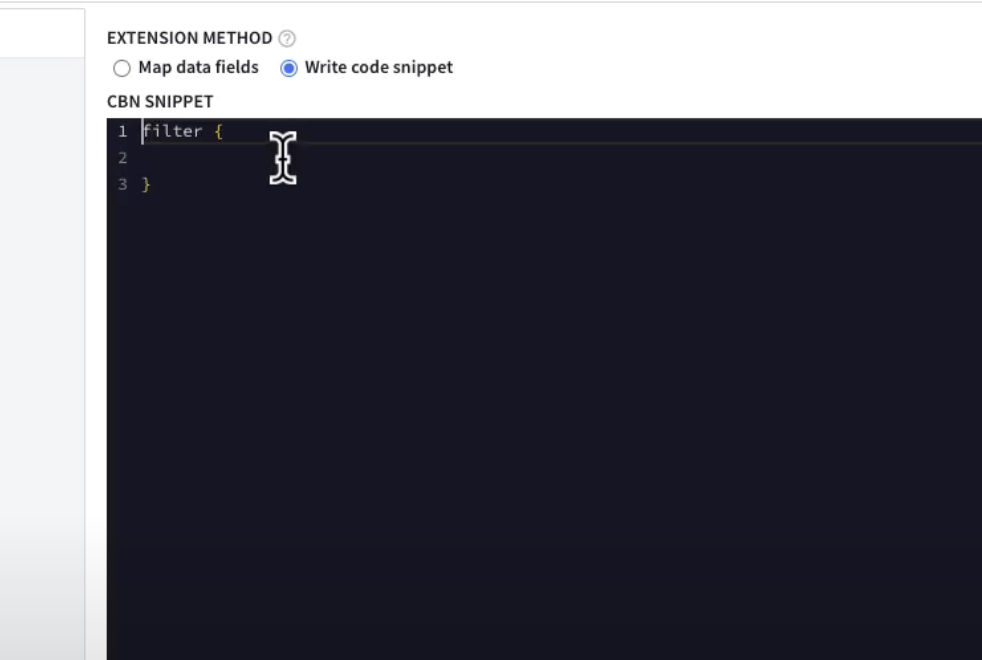
There are two ways of writing extensions: An easier and more visual “Mapping” Mode or “Advanced” Mode.
The easier “Mapping” mode works for JSON, XML, and key value (Should this be CSV?) Advanced mode allows you to use the full log stash like syntax provided by Chronicle CBN and can be used for advanced regular expressions or other processing.

Clicking on “Preview UDM Output” you can see exactly how this data is parsed. This is without the enrichments, just the unenriched parsed fields.We can edit the logs and see how different fields end up.
Here you can edit the logs and see how they see how the final result would format. Below you can edit the logs and see how different fields end up. In this example we are changing the field from Windows to Mac.
The platform field changes when this variable is edited in the Output section. In this example, the Shared Access field is already parsed and searchable.
.gif?width=1688&height=916&name=video%205%20(1).gif "video 5 (1)")
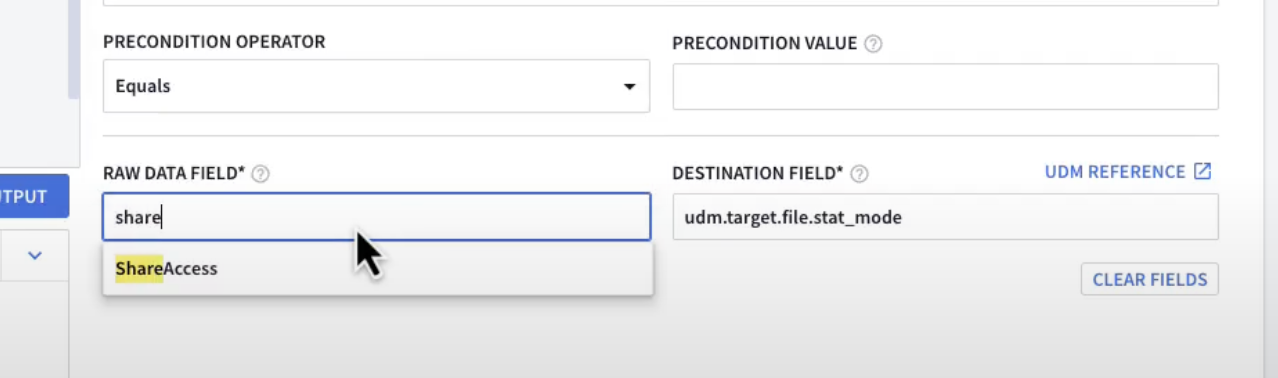
In this exercise we will parse this again but for a different field. To do this we look at our UDM reference and navigate to the reference file object we can see there is a stat_mode field, which has an integer that is designed to store the file mode. Going back to our Parser all we have to do is pick our source field and search for the correct UDM field. Auto complete will help even if we just search for “mode”.
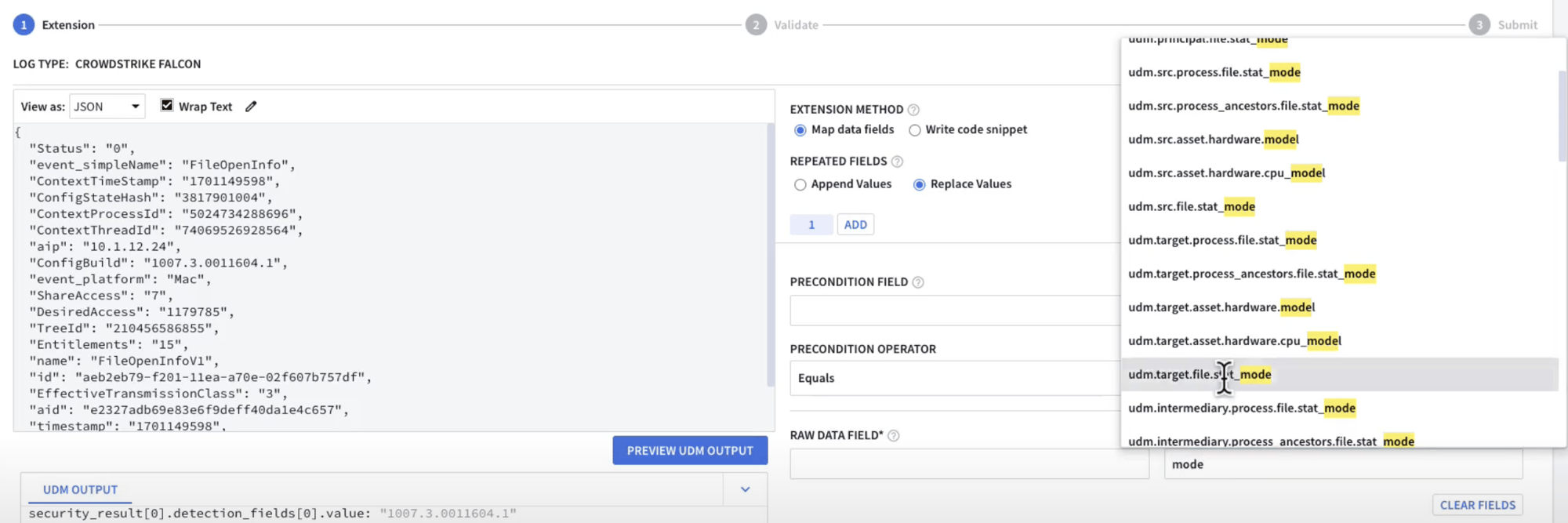
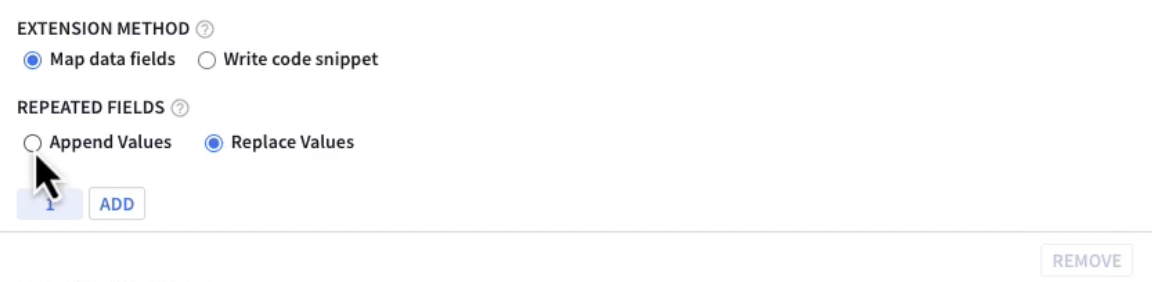
In this search we are opening “udm.target.file.stat_mode” (This is confusing and don’t understand). After selecting this, you will then be able to select the field you want to manipulate in “Raw Data Field”. Here you can append values or replace values.
.
Once you have selected the fields you want to change, you can press “Validate” and this will pull data from the historical logs in Chronicle and make sure there’s no unexpected errors. Here we can see that the validation went smoothly and 100% of logins were successfully normalized. Now we are ready to submit this extension.
.gif?width=1532&height=856&name=video%207%20(1).gif "video 7 (1)")
.
Normalization of Alerts in SOAR
Now that we have gone over creating a parser extension, let's break down the process of handling and automating alerts in Chronicle SOAR.
In SOAR we have an entity graph and can see each alert that comes through SOAR. The entity graph in SOAR processes each alert, extracting necessary fields for further automation in playbooks. Visual and straightforward, this process involves modifying event mappings and configuring fields, ensuring comprehensive extraction of relevant information for subsequent automated actions.
Below we have a practical example, here we are looking at a "Virus Found or Security Risk Found" event page. Here, most integrations you have installed will automatically parse out entities. You can easily view the process name, file path, file hash, etc.
.gif?width=1706&height=944&name=video%208%20%20(1).gif "video 8 (1)")
.
When you look at the events tab you will see the raw fields pulled from the actual alert along with many other fields. You can see them all by clicking "View More". In this screen you can modify which fields are being parsed.
.gif?width=1412&height=946&name=video%2010%20(1).gif "video 10 (1)")
.
Let's modify risK_NAME as an example. In our event definitions field we can see that risK_NAME has a unfamiliar string and you want to change it. All you have to do is close out of the events definition menu and click on the "Gear" Icon to configure the event mapping.
.gif?width=1698&height=922&name=video%2011%20(1).gif "video 11 (1)")
.
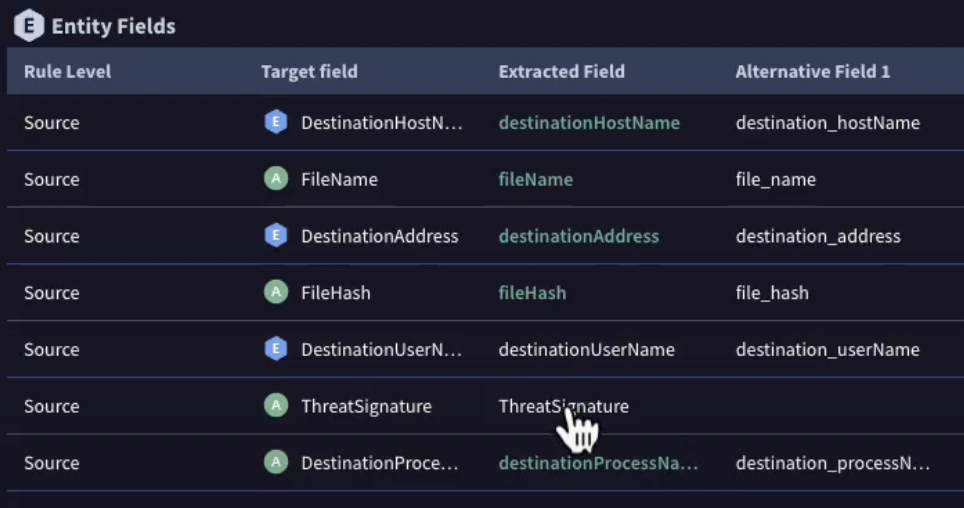
In this view you can see the exact map of the event you are investigating. You can at a glance see how the different fields are being parsed. This screen is a helpful way to visualize how each field is parsed and in this case we can see that "ThreatSignature" is lacking an alternative field, as represented by its white color as opposed to green which would mean that the value is present.
In this example, we would still want to see the ThreatSignature field if present, but if not present then we can use "risK_NAME" as an alternative field.
.
Once it renders, we can see Alternative Field is filled with a green field titled risK_NAME. Now that this value is properly parsed out, it can be added to a playbook. After this is complete we can now automatically handle the triage, check if your team's Antivirus team has quarantined or blocked it, raise a ticket to your Antivirus Team, automate notifications, and eliminate false positives.
.gif?width=982&height=490&name=video%2012%20(1).gif "video 12 (1)")
.
Hopefully this blog was helpful to get a better understanding of how Data Normalization works in Chronicle........
Summary
.......